

With the rise of remote work, creating a comfortable and efficient home office setup has never been more important. While it might be tempting to work from your couch or kitchen table, an ergonomically designed workstation can significantly improve your long-term health and productivity while reducing risk of injury. Here's how to create an optimal ergonomic workspace at home.

1. Adjust Your Chair
At the heart of any ergonomically designed workstation is a supportive chair. Well-designed chairs are intuitive to adjust and promote movement. Try to source a chair that has the following adjustments.
- Seat Height: Set the seat height such that your feet are firmly planted on the floor or on a footrest, with your thighs about parallel to the floor. This ensures even pressure along your thighs.
- Seat Pan Depth: Adjust the seat pan depth to allow 2-3 fingers of space between the back of your knee and the front edge of the chair. This adjustment prevents contact stress behind your knees and ensures even pressure distribution along the length of the seat pan.
- Backrest: The backrest of your chair should be adjusted to fit the lumbar region of your spine, which is your lower back. Chairs with foam cushioned backrests will often adjust, whereas many mesh back chairs are designed to self-adjust. Choose a chair that best supports the natural curvature of your lower back.
- Armrests: Adjust the armrests such that they are aligned with your resting elbow height. Your shoulders should be relaxed when using the armrests.
- Recline: It is a misconception that sitting up straight is the healthiest posture. The best posture is the next posture, and this implies that movement is critical for maintaining long term comfort and health. Select a chair that allows you to vary your posture without having to make manual adjustments. Self-adjusting recline mechanisms rely on the users body weight to automatically tension the backrest. Transferring body weight to your chair has been shown to significantly reduce spinal disc pressure. Movement promotes spinal nutrition and reduces fatigue.

2. To Sit or To Stand?
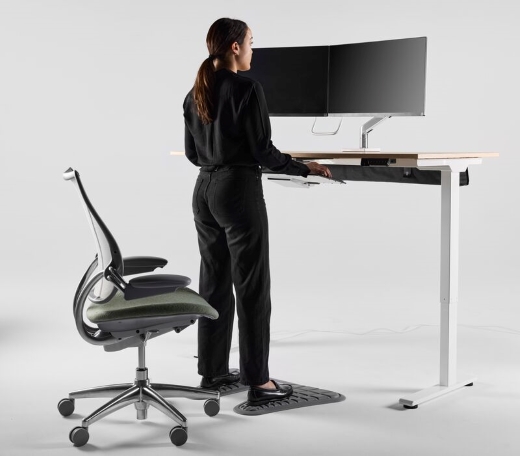
Alternating between sitting and standing throughout the workday has been shown to have significant health benefits. You will burn more calories, improve your cardiovascular health, and increase your circulation.Dr. Alan Hedge, professor emeritus at Cornell University, recommends sitting for 16 minutes, standing for 8 minutes and stretching for 2 minutes every thirty minutes. Standing all day is just as unhealthy as sitting all day, so be sure to vary your posture according to the guidelines.
Whether you are sitting or standing, the worksurface should be aligned with your resting elbow height. Select a height-adjustable table that can be adjusted quickly and easily.

3. Monitor Placement
Proper monitor placement can prevent neck and eye strain, two common problems for remote workers. The top of your screen should be positioned at or slightly below eye level, such that your neck can remain in a neutral position while working. If you are working from home at least one day per week, we strongly recommend investing in an external monitor. Laptop screens were never designed to be used for prolonged periods of time.
Tips for Proper Monitor Placement:
- Height: Because we look downward naturally at -15 degrees, the top of your monitor should be at or slightly below eye level when you’re sitting in a supported position.
- Distance: Place the monitor about an arm's length (20 to 30 inches) away from your eyes. You should not need to squint or lean forward to view your monitor. Placing the monitor too close to your eyes can also be fatiguing.
- Angle: Tilt your monitor 10 to 20 degrees away from your body such that your natural downward line of sight is about parallel to the screen.
- Alignment: Align the monitor with the midline of your body and the spacebar on your keyboard to avoid neck and trunk rotation. If using two monitors, place the primary monitor directly in front and the secondary one at an angle to reduce excessive head movement.
- Orientation: Position your monitor perpendicular to windows or light sources to reduce screen glare. If needed, use an anti-glare screen or adjust your monitor's brightness and contrast settings to improve readability.
4. Keyboard and Mouse Position
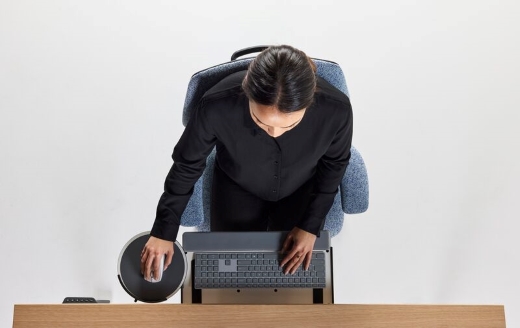
Have you ever wondered why you sit high in your chair and shrug your shoulders when keying and mousing? It turns out that standard desk heights are much too high for most individuals. Standard 29.5” desk heights correlate to the seated elbow height of a 6’4” male!
To achieve a neutral hand and wrist posture while typing, the worksurface height should be aligned with your resting elbow height. Bring your keyboard and mouse closer to your body – this will allow you to properly use the backrest of your chair. If you are using an articulating keyboard platform, angle the platform slightly away from your body to straighten your wrists. Keep your mouse as close to your shoulder as possible to minimize reach distances. When using a laptop, always use an external set of input devices.
Tips for Keyboard and Mouse Setup:
- Height: Position the keyboard at or just below resting elbow height.
- Distance: Position your keyboard and mouse close to your body and use your chair’s backrest. Avoid leaning forward in your chair.
- Palm Support: Use a padded palm support to support your palms, not your wrists while typing. Wrist rests have been shown to double pressure in the carpal tunnel and are not recommended. The palm support should be the same height as your keyboard.
5. Lighting and Screen Glare
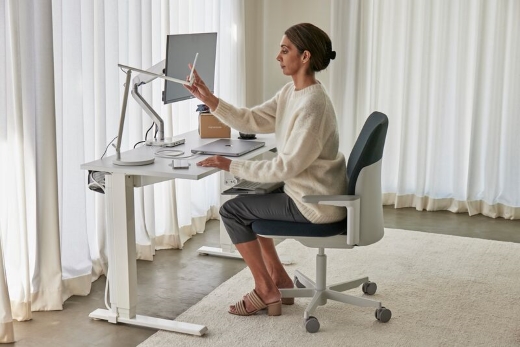
Lighting plays a significant role in preventing eye strain. Poor lighting or glare has been linked to the development of headaches and eye strain. We need more light as we age – those in their 60s require 250% more contrast than those in their 20s! This is because our eyes physically change with age – the corneal lens hardens and develops opacities making near field viewing increasingly more difficult. To achieve optimum lighting levels at your workstation, we recommend using a controllable task light. When using a task light, consider the following:
Positioning a Task Light:
- Position your task light opposite your writing hand to reduce shadows when writing
- Position the shade of the task light such that the bulb is not visible
- Direct the light across your workstation and avoid creating glare by shining light on your monitor
- Take visual breaks - the American Optometric Association recommends the 20-20-20 rule: every 20 minutes, look at something 20 feet away for at least 20 seconds to reduce eye fatigue.
6. Microbreaks and Movement
It's essential to take regular breaks and vary your posture throughout the day. A microbreak is defined as a 30-60 second break from your work. Examples include talking a quick walk, getting a glass of water, or stretching. Taking 2-3 microbreaks per hour will reduce fatigue and discomfort associated with prolonged computer usage.
In Summary
Setting up an ergonomically designed workstation for the home requires thoughtful consideration of your body’s posture, your work tools, and the work environment. Simple adjustments can significantly improve comfort levels and reduce your risk of injury. Fitting the work environment to you will also improve your overall efficiency. Prioritizing ergonomics may take some initial effort, but your body will thank you in the long run!
References
Mayo Clinic. Ergonomics: The Science of Workplace Comfort. Retrieved from [mayoclinic.org](https://www.mayoclinic.org).
Occupational Safety and Health Administration (OSHA). Computer Workstations eTool. Retrieved from [osha.gov](https://www.osha.gov).
National Institute for Occupational Safety and Health (NIOSH). Preventing Work-Related Musculoskeletal Disorders. Retrieved from [cdc.gov/niosh](https://www.cdc.gov/niosh).
American Optometric Association. Computer Vision Syndrome. Retrieved from [aoa.org](https://www.aoa.org).
American Physical Therapy Association (APTA). Workstation Ergonomics. Retrieved from [apta.org](https://www.apta.org).


.jpg)

